
WHAT'S NEW IN NOMADIA FIELD SERVICE?
Discover the latest updates in the NFS application.
Beta Version (0.1.0)
Release Date: 11/04/2023
New Application Identity
Opti-Time has become Nomadia Field Service. The entire application's design has been revamped to integrate the visual design of the Nomadia Group's solutions.
The application is now available on IOS & Android. The Beta version of the application is ready to be tried out!
The application has been completely developed with new technologies to provide a better working tool for the daily needs of all our users.
How to participate in the application testing phase?
Please contact us for more information on the steps to follow.
Features
Dashboard

Once the technician is logged into the application, they have a comprehensive summary of their day with the ability to get a quick overview of the next day.
It provides information such as the total travel time, the number of kilometers to be covered, and the working time for their scheduled interventions.
They have the option to perform quick actions, start their day, and accept all their scheduled interventions for the day.
They can view their upcoming interventions and access their details by clicking on them.
This dashboard allows the technician to have easy and quick access to essential information for performing their various interventions of the day.
Intervention Schedule
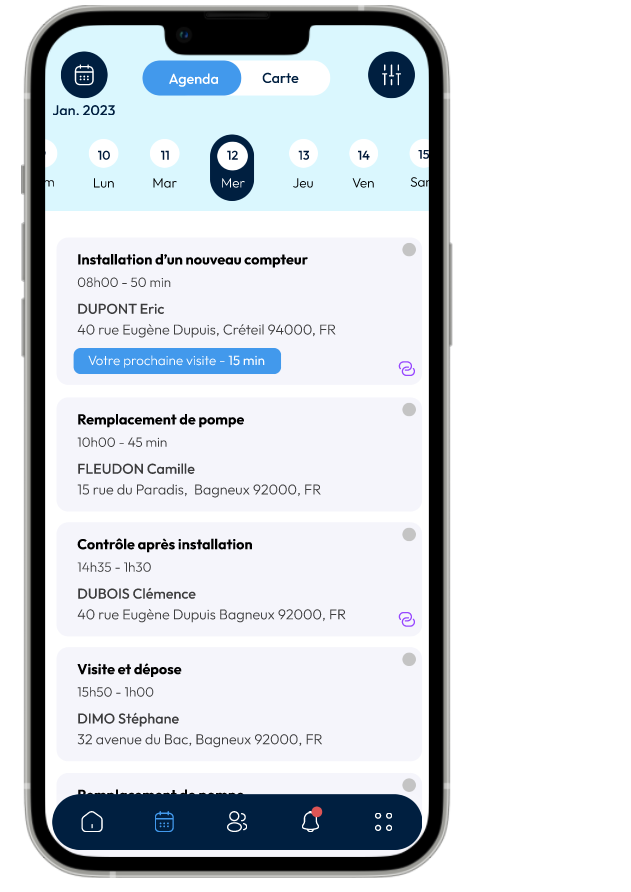
The agenda allows the technician to view their chosen day with various display modes, such as list view, planning mode, or weekly view.
Each intervention can be viewed by clicking on it. Quick actions can be performed by long-pressing on the intervention.
It is possible to display a map of a technician's route by going to the map section. The technician can see the route to be taken during their day, along with various information such as the route and intervention locations.
The technician has the ability to search for a specific intervention using search criteria.
Addresses
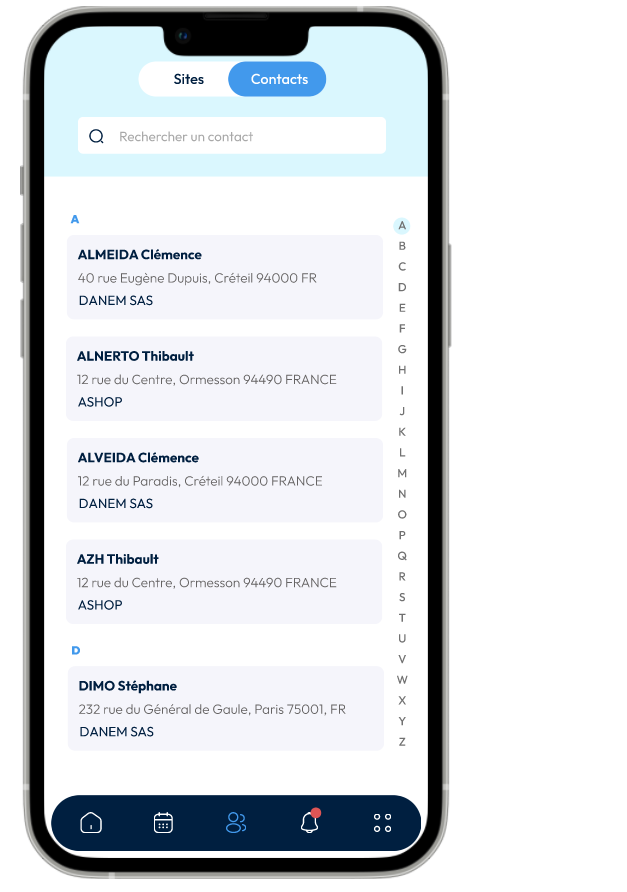
The addresses tab consists of the technician's sites and contacts. They can easily search for their data based on their sector using the search bar located at the top of the screen.
By clicking on the tile, they can view the details of the selected site or contact.
Once in the contact or site profile, they can access various data and perform quick actions such as making a phone call, sending an email, or navigating to the chosen address.
Interventions

The intervention details involve the completion of a mission with various obligations: taking photos/videos, obtaining client signatures, and more, depending on the application's configuration.
The intervention module is divided into several tabs:
Information: includes all information related to the intervention.
Documents: includes various files shared from the back office with the technician for this intervention.
Photos/Videos: the technician can take multiple photos and videos of the intervention (before and after the intervention).
Tasks: involves completing various tasks configured in the back office.
Report: allows the technician to respond to fields configured in the back office.
Summary: allows the technician to obtain client signatures and view the intervention summary.
Colleagues

Colleagues are displayed on a map to track their last known position. When you click on a person of your choice, you have several options such as calling them, sending a message/email, or starting the route to join them.
Colleagues in green are those who have synchronized their position within the last hour.
Colleagues in orange are those who have synchronized their position more than an hour ago but less than three hours.
Colleagues in red are those who have synchronized their position more than three hours ago.
You can also view the percentage of battery life on their phone.